


The Advanced Design Page
Using the Advanced Design Page
Click the Edit icon on the Actions Toolbar on the Activity page to check out a section of the yearbook and work on its design.

You will be taken to the Advanced Design page.
The Advanced Design page provides a preview of the section you are working on, and allows you to customize each page individually. You can add layouts and backgrounds, photos, text captions, and clip art, and make other design changes. You can also create your portrait Panel pages, and Index pages, using automated features.
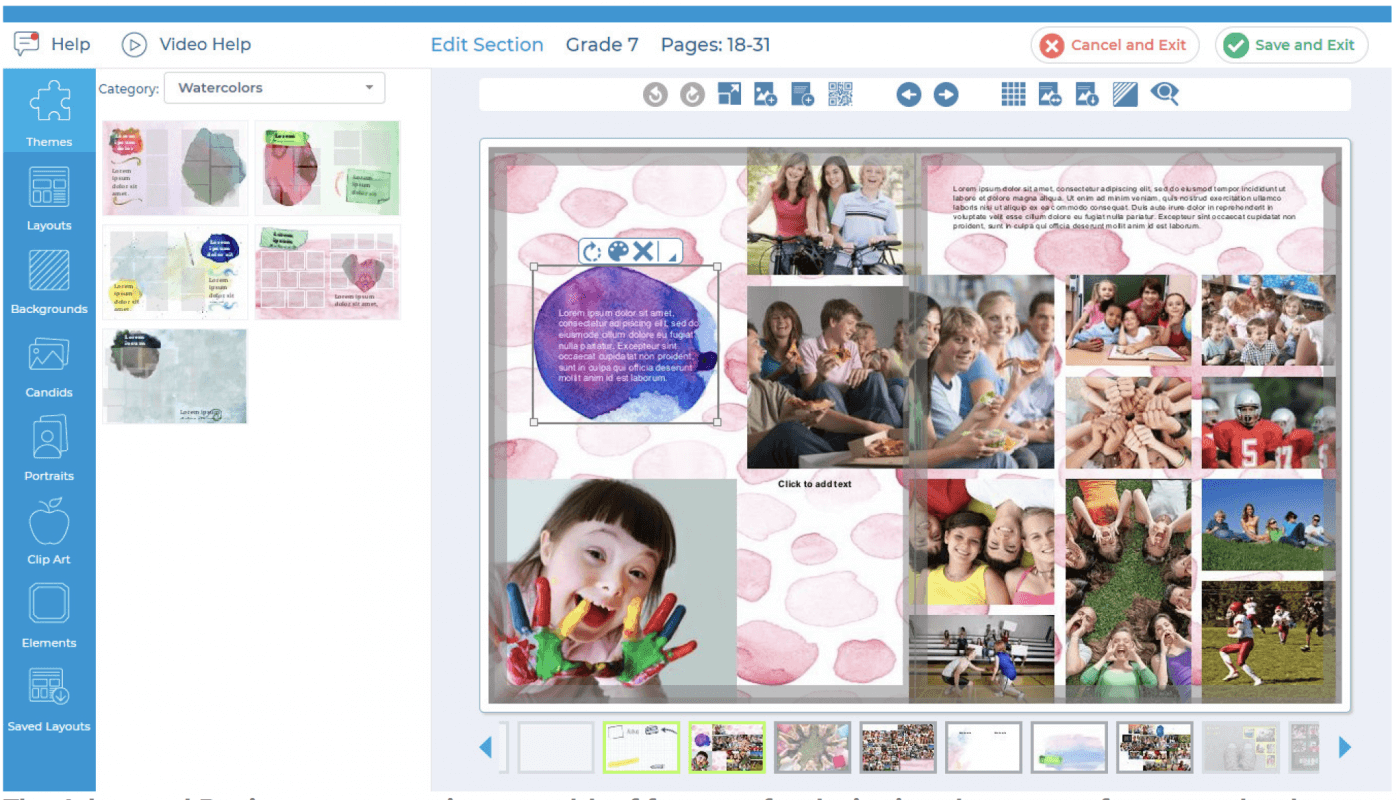
- Help
- Click Help to view any current help or warning messages. A message indicator will appear when there is a new help message.

- Video Help
- Click the Video Help link at the top of the page for a video overview of the main features.

- Section Name
- The Section Name is displayed at the top of the page, along with the specific page numbers for that section.

- Main Toolbar
- The Main Toolbar across the top of the page, above the section preview, provides access to the main features for working with your yearbook. For more information on this toolbar, see this article.

- Cancel and Exit
- The Cancel and Exit button allows you to leave the Advanced Design page without saving any of your changes.

- Save and Exit
- The Save and Exit button allows you to leave the Advanced Design page and save all of your changes.
TIP: All of your changes are saved automatically as you design your page, so there’s no need to worry about having to save them manually! However, you can click Cancel and Exit if you want to leave the page without saving anything. If you leave the page without clicking Cancel and Exit or Save and Exit, all changes will be saved.
- Tab Bar
- The Tab Bar on the left contains all of the page design components, which can be dragged and dropped onto the pages of the yearbook.

- Section Preview
- The Section Preview in the center of the page is your working area, and contains a real-time preview of the section you are working on.
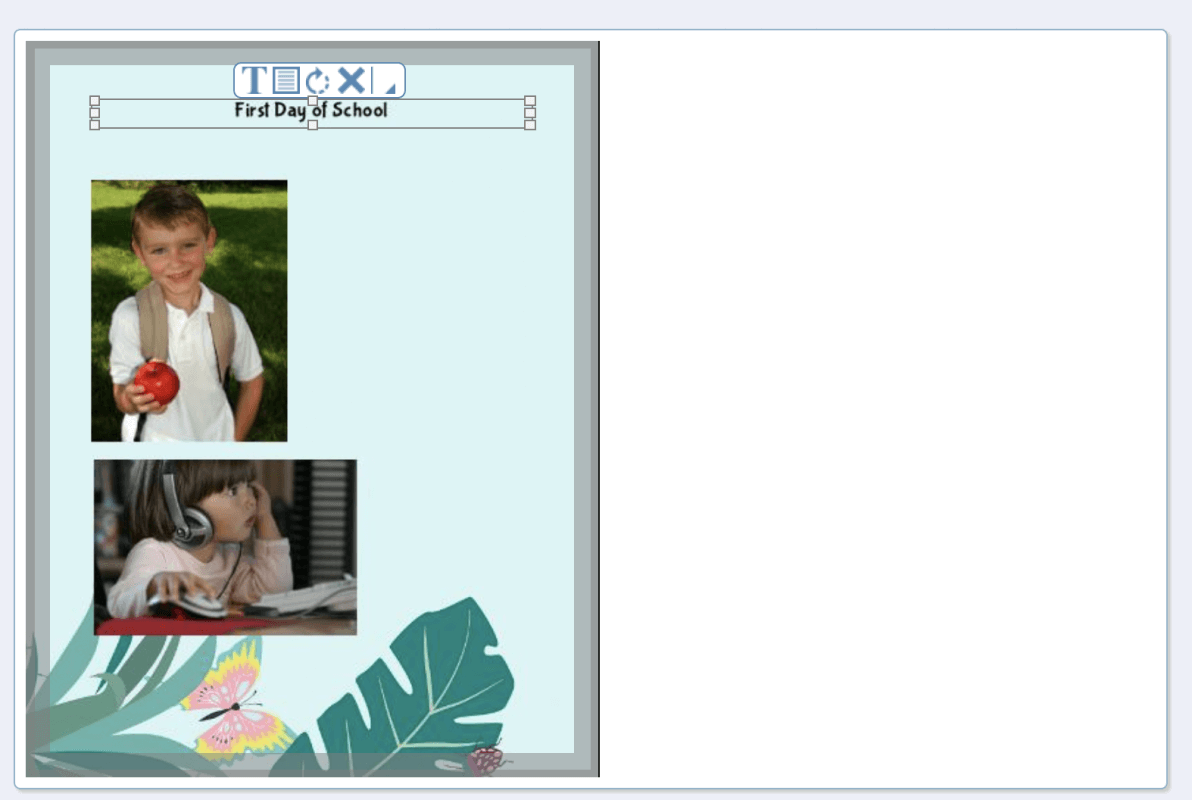
- Page Navigation Controls
- Below the Section Preview, are Page Navigation controls that allow you to scroll between pages of the section.
