


The Yearbook Page
On the Yearbook page, you can set up and organize your yearbook, arrange and modify individual sections, assign sections to different users, and check out sections for editing.
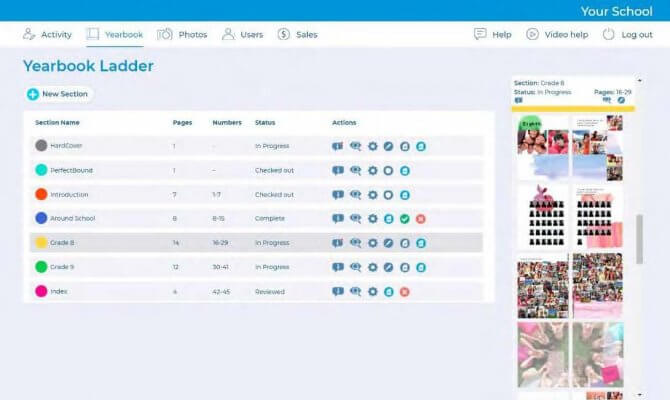
The Yearbook Page contains a Ladder for creating and managing your book. The Yearbook page is accessible by users with Adviser, Editor and Staff privileges. If you don’t see the Yearbook button on the Navigation Bar, you have not been provided access.
- The Yearbook Planning Ladder, located on the left side of the Yearbook page, is a valuable tool that graphically illustrates all of the pages of your yearbook, arranged into sections as they will appear in the finished book, with page numbers. The ladder helps you organize the book and determine the overall number of pages needed. In the case of a collaborative effort, the planning ladder can also be used to allow individual users to work on different sections of the book.
- The Section View, located on the right side of the Yearbook page, displays a current thumbnail version of each section in the book, and provides shortcut access to key functionality. TIP: Clicking on a section in the Yearbook Ladder will scroll that section into view in the Section View.