


The Section View
The Section View, located on the right side of the Yearbook page, displays a current thumbnail version page, and provides shortcut access to key functionality.
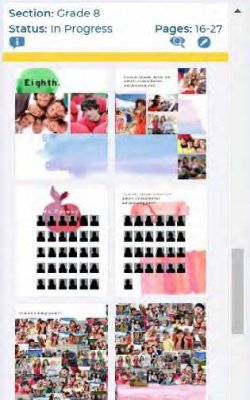
- Clicking on a section in the Yearbook Ladder will scroll that section into view in the Section View.
- Each section in the Section View is color-coded with the ladder color for that section, and displays the Section Name, Status, and Page Range.
- Icons on the Section View provide access to key functionality from the Yearbook Ladder.
- Info/Messaging icon
- Shows a history of the section and allows anyone with access the ability to comment on that secton
- Preview
- Clicking this icon see an online preview of the selected section. You can turn the pages of the preview, and navigate through the entire yearbook.
- Edit
- Click to check out a section of the yearbook and work on its design. You will be taken to the Advanced Design page. TIP: Users with Editor or Adviser privileges can double-click on a section thumbnail to bring up the Modify Sections dialog.
- Info/Messaging icon