


Managing Portraits
Managing Your Portraits
After you’ve uploaded your portraits from the PSPA, you may want to further organize or modify them.
Adding a New Folder
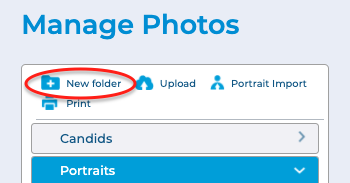
Click the New Folder button to add a new folder for organizing your portraits.
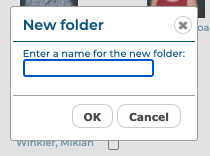
Enter a name for the folder when prompted, then click OK.
Renaming or Deleting a Folder
Click the Rename folder icon next to a folder to rename the folder. Enter a new name for the folder when prompted, then click OK.

Click the Delete folder icon next to a folder to delete the folder.

Printing your Portraits for Proofreading
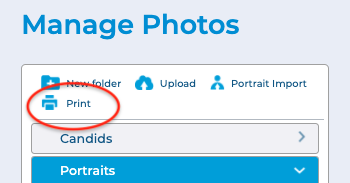
Click the Print button to print your portraits for proofreading.
The Print Portraits dialog will appear. Select the folders you would like to print, then click OK.
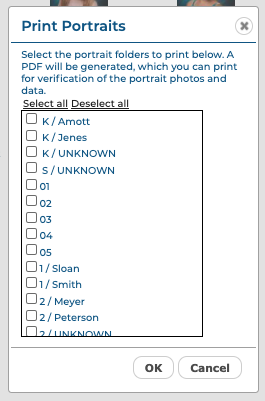
A PDF will be generated, which you can print to your local printer.
Changing Portrait Information and Prioritizing Teachers to Appear First
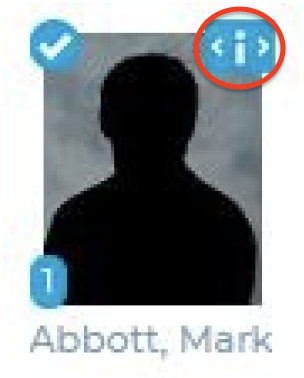
To Preview a portrait in a larger window, change the Name, Grade and other info, view
Portrait Info, and specify Teacher Portraits and Priorities, click the Preview/Info icon, at the top right of any photo thumbnail.
Click the Left and Right arrows to scroll through all of the Portraits in the current folder.
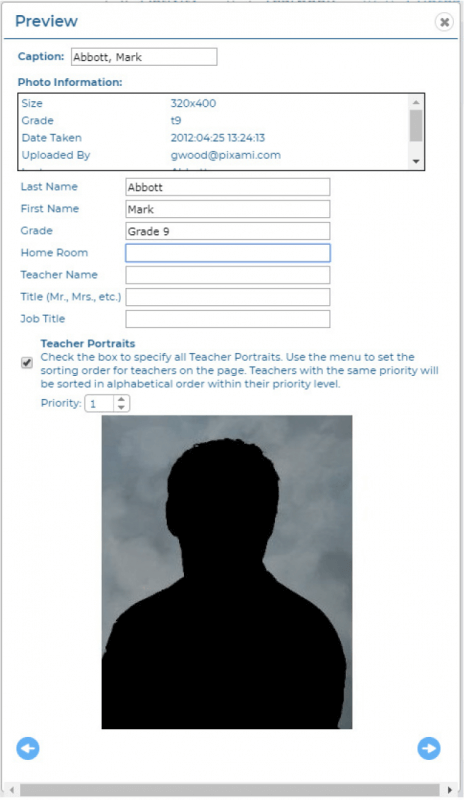
To change the Caption for a portrait, type the new name into the Caption field.

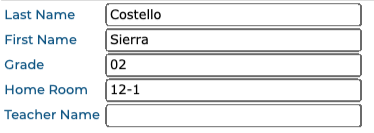
To change or add the Last Name, First Name, Grade, Home Room, Teacher Name, Title, or Job Title for the portrait, type it into the appropriate field.
If your teachers are in the same folder as the student portraits you can make them appear in the first position(s) on the class portrait page, or automatically flow into a larger teacher frame.
Check the Teacher Portraits checkbox to specify all teachers in the folder. All portraits with the Teacher Portrait checkbox checked will flow into the first positions on the portrait page, regardless of alphabetical order.

If you have selected more than one portrait as a teacher, you can adjust the order in which they appear by selecting a number from the Priority menu.

The Priority for each teacher will appear on the thumbnail in the contact sheet.
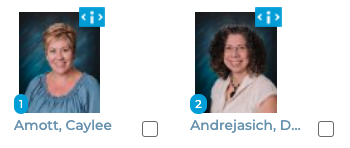
If you select the same Priority for more than one Teacher Portrait, the portraits will appear on the portrait page in alphabetical order, within that priority level.
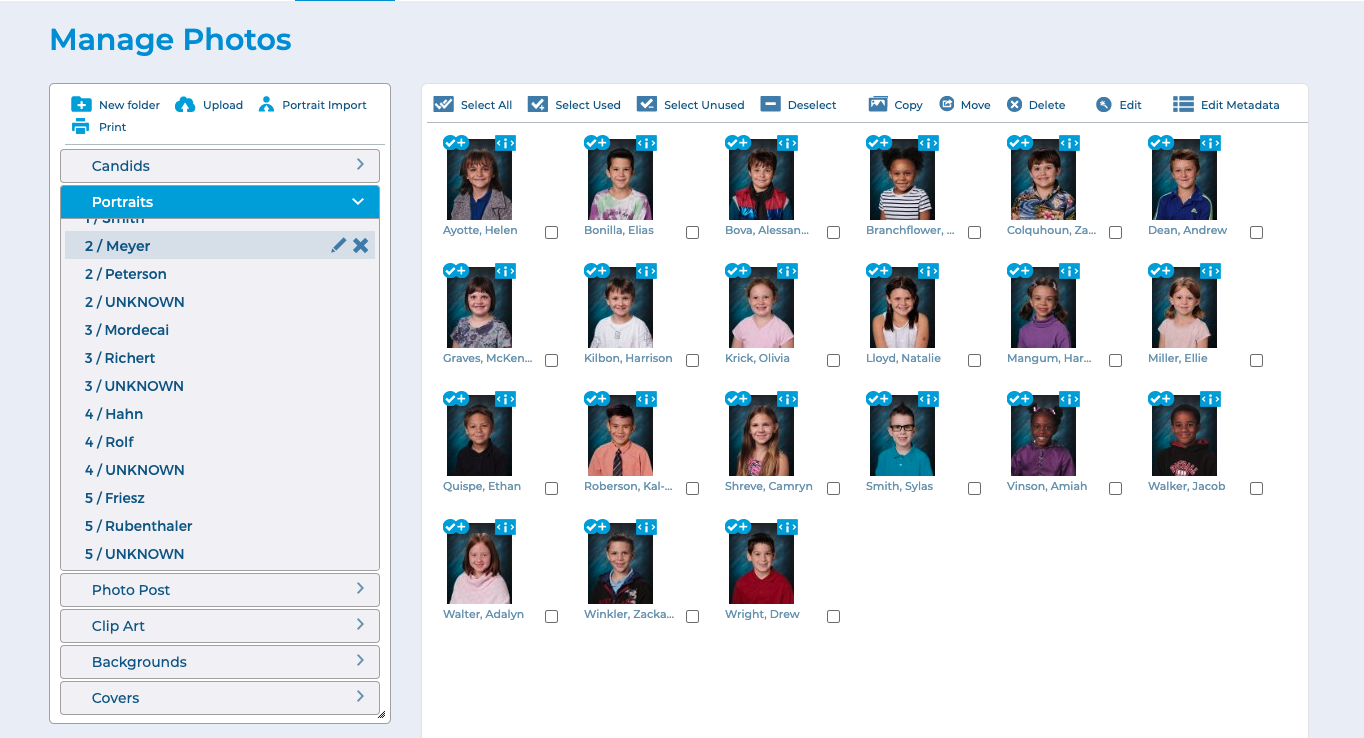
Portrait Organization Using the Toolbar
You can select a portrait by clicking it, or by clicking the checkbox below it. A checkmark will appear to indicate that the portrait has been selected. Deselect a portrait by clicking it, or the checkbox, again. You can also select multiple portraits at a time.
Use the features on the toolbar to organize the portraits in a folder.

Click Select All to select all of the portraits in the current folder.
Click Select Used to select only the portraits in the current folder that have been used in the book. These portraits display a checkmark icon.
Click Select Unused to select only the portraits in the current folder that have not been used in the book.
Click Deselect to deselect all portraits in the current folder.
Click Copy to copy the currently selected portraits to another folder. The Copy selected photos dialog will appear. Select a destination folder for the portraits, then click OK.
Click Move to move the currently selected portraits to another folder. The Move selected photos dialog will appear. Select a destination folder for the portraits, then click OK.
Click Delete to delete the currently selected portraits.
Click Edit to the edit a portrait. You can only have one portrait selected to use the editing feature.
Click Edit Metadata to correct or add any information from the Index file. This feature allows you to make changes to the portrait data after the portraits have been uploaded.
Automatic Updates
When you make changes to your portraits, the layout of existing portrait pages will update automatically if needed. Some changes that may cause your existing portrait pages to update automatically include:
• Changing or correcting the first or last name associated with a portrait
• Adding a portrait or portraits to a class folder
• Removing a portrait or portraits from a class folder
• Moving a portrait or portraits from one class to another
Depending on your layouts, and the specific changes you made, your pages could be significantly altered. An alert may appear under the Help menu, on the Photos page, or on the Advanced Design Page, suggesting that you review your portrait pages after any changes have been made.
IMPORTANT! If you make any changes to your portraits that may affect the layout of existing portrait pages, it is very important that you review the pages in the Advanced Design editor. You can then make sure that everything looks the way you want, and make adjustments as necessary.