Custom Backgrounds
Using your own backgrounds for pages, spreads, and covers.
Note: Image size must be under 20 MB and must be HIGH resolution.
Recommended Sizes:
Single Page: 2625px by 3375px
Double Page/Cover: 6000px by 3900px
All images found in the Studio Source Content Catalog are the correct size and resolution
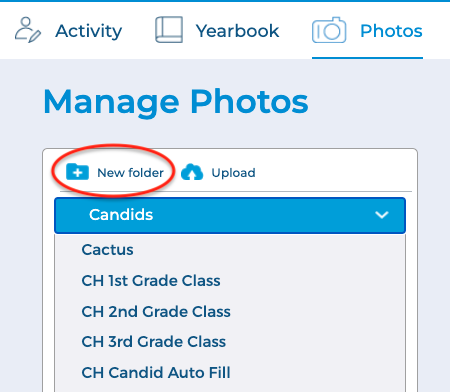
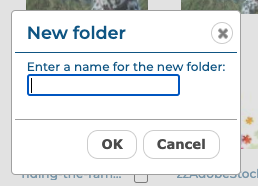
- Create a new folder in the Candids tab of the Photos page
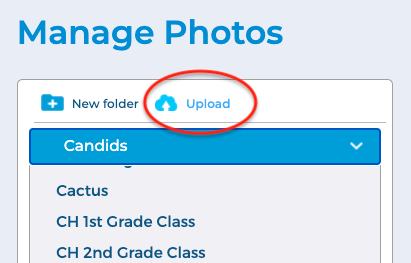
2. With your new folder open, click the Upload button
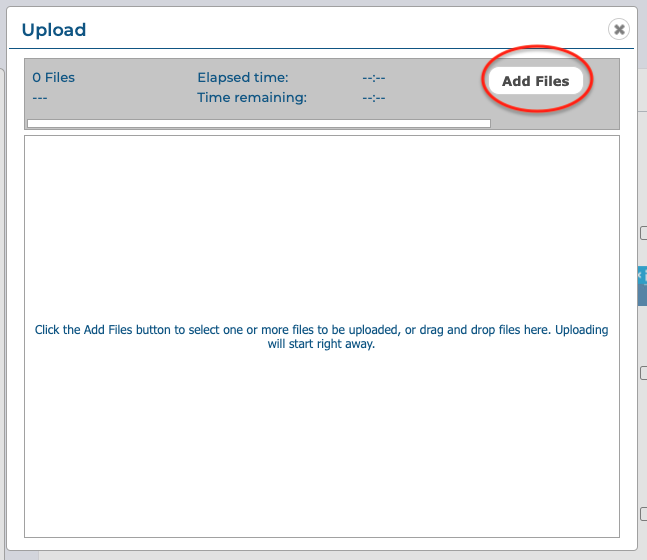
3. When the dialog opens, click the Add Files button to select a file(s) from your computer to be uploaded.
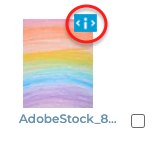
4. You will find your image has uploaded to your folder. You can click on the info icon to open up the details if you’d like to rename the file or tag the image if, for instance, it is a photo with students.
5. Now it is time to use your background! Navigate to the page you’d like to use it on, in the editor.
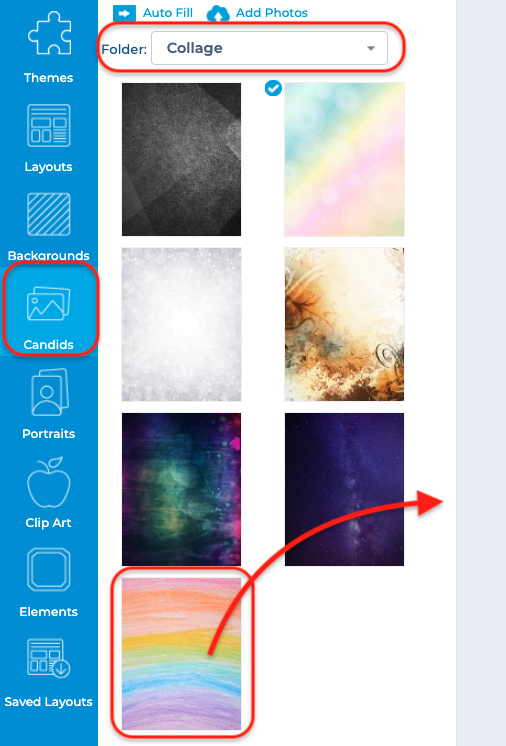
6. Open the Candids tab in the editor and select the folder to which you uploaded your background. Drag and drop your background onto your page
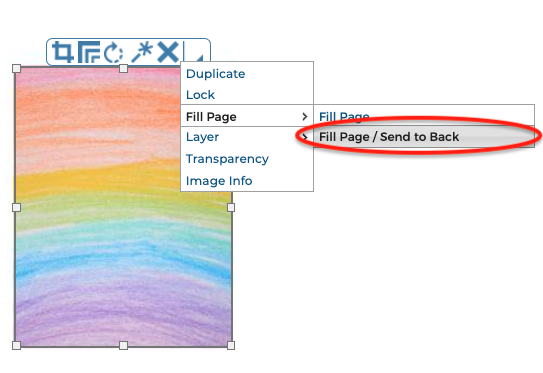
7. With your background selected on your page, click the Fill Page/Send to Back tool to fill your page.
8. Enjoy your new full page background
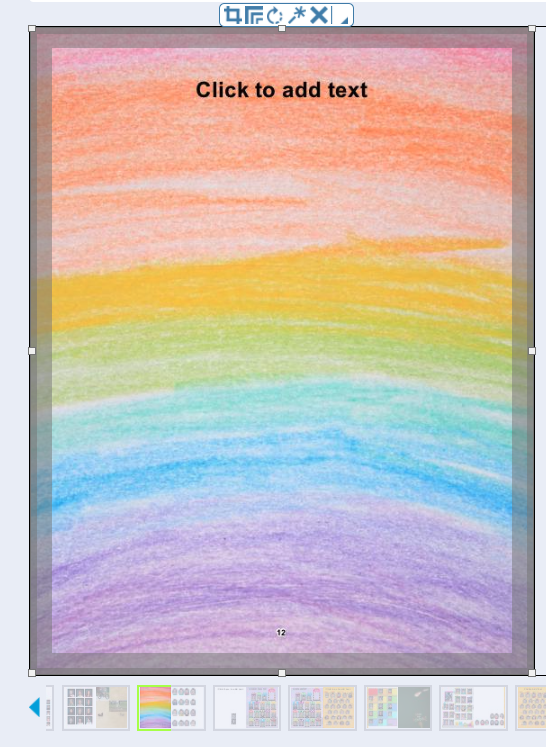
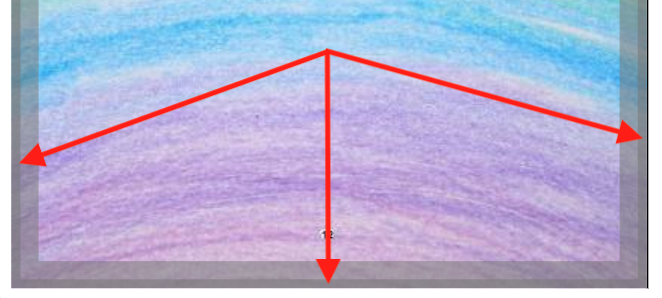
Tip: Always double check that your background is Full Bleed. This means that your background reaches all edges of the page with no whitespace showing.