The Crop Tool
Cropping Using the Crop Tool

Click on the Crop tool to crop the photo. The crop dialog will appear. The yellow crop rectangle represents the area of the photo that will be cropped.
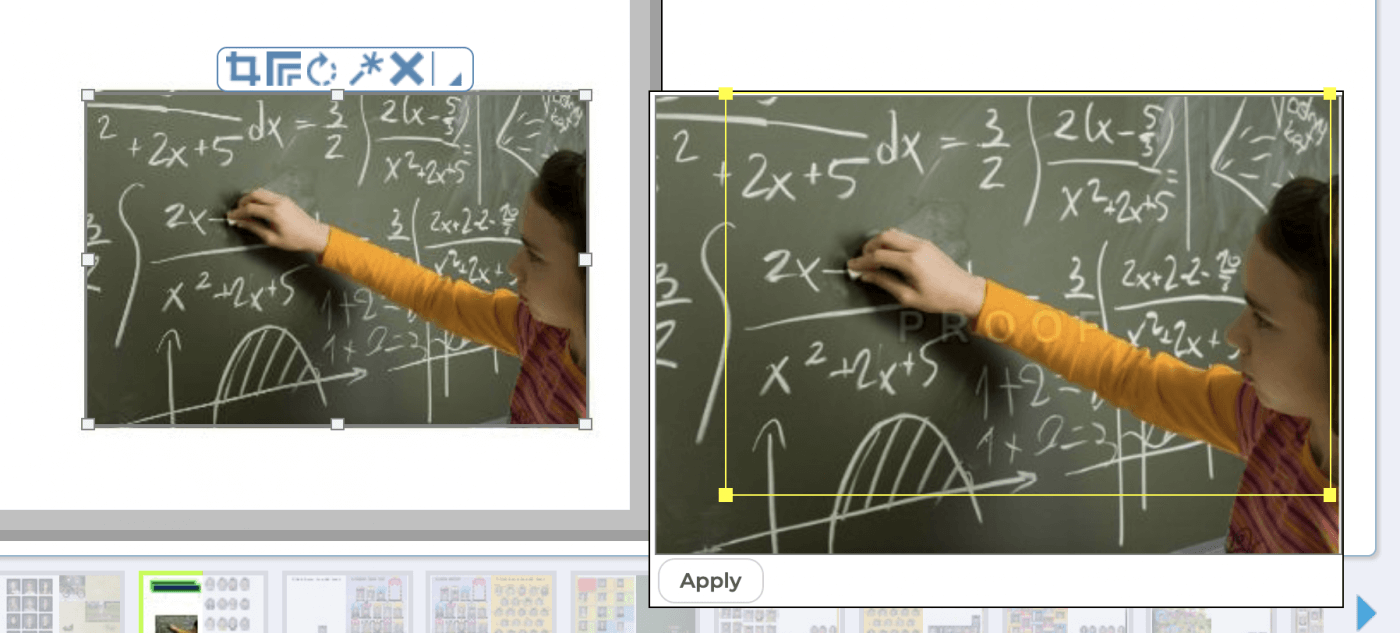
Click in the center of the crop rectangle and drag to reposition it. Click and drag a corner to scale it.
Note: The crop tool maintains the dimensions of the original frame, so you will be essentially zooming into the photo. If you crop too much, you may end up with a low resolution warning.

Click Apply to close the dialog and apply your changes to the photo. Click anywhere outside of the dialog to close it without making any changes.