


The Border Tool
Applying Borders Using the Border Tool

Click on the Borders tool to apply a border the photo. The borders dialog will appear.
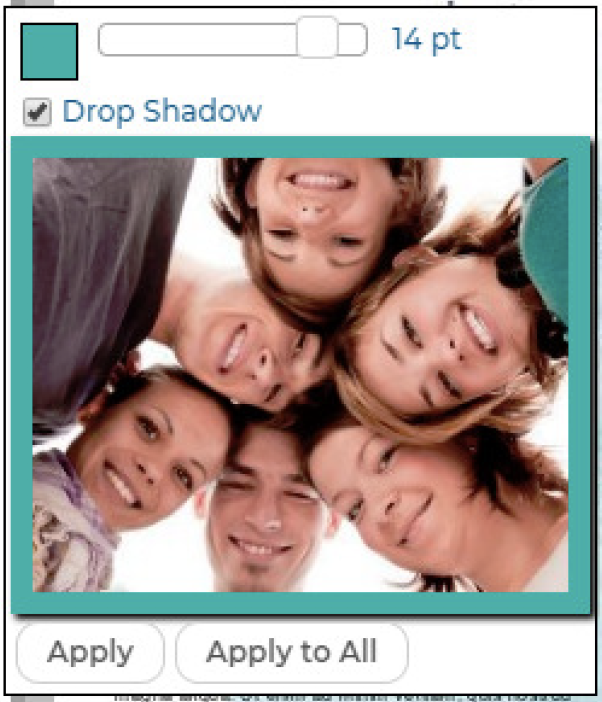
Drag the thickness slider to adjust the thickness of the border.
Click on the color swatch to change the color of the border.
Click the Drop Shadow checkbox to add a drop shadow to the photo.
Click Apply to close the dialog and apply your changes to the current photo. Click Apply All to close the dialog and apply your changes to all photos in the current spread. (Check to make sure this didn’t apply a border to your background if using a custom background you’ve uploaded yourself). Click anywhere outside of the dialog to close it without making any changes.